Logic for Pro Tools Users: Part 2 February 15, 2008
Posted by ConnorSmith in : Leopard, Logic Studio 8, Pro Tools , trackbackInstallment #2 for for all the Pro Tools users who are currently using Logic. If you are like me, then you made the jump because Digidesign still has not gotten Pro Tools compatible with Apple’s Leopard Operating System (although it does have some success working in 10.5.1, but less in 10.5.2) Plenty of Pro Tools users will tell you that they use Pro Tools because of its audio editing capabilities. Yes, I would agree that it is excellent for that, BUT, this new version of Logic has some great tricks up its sleeve. Although the editing is much different than that of Pro Tools, I have found it to be very quick and effective so far (once you get used to the new hotkeys). Whereas Pro Tools edits are based around the “F” keys at the top of the keyboard (or the beloved super tool), Logic’s edit tools are selectable with the mouse. In the upper right hand corner of the screen, you will see two (or three) tool buttons.
If you haven’t already, go to the menu at the top of the screen and navigate to Logic Pro>Preferences>Global. In that window, click the editing tab, and make sure your “Right-click” is assigned to “Is assignable to a tool”.
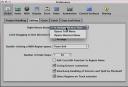
Now in the arrange window, there will be three tool selection buttons available. The first is your left click button. The second box shows you which tool will be selected when you hold down the command (apple) key and left click. The third box shows your right-click tool. Experiment with different combinations here. I find myself using the pointer, scissors, and fade tools (respectively). If I need to delete a region, I opt to use the delete key, rather than switching to the eraser tool.
Pro Tools users are likely used to switching between shuffle, slip, spot, and grid modes. A similar technique is used in Logic. Right next to the tool selection buttons (in the upper-right hand part of the arrange window) you will see two drop-down menus labeled “Snap” and “Drag”. The snap menu determines what sort of grid your files will snap to when dragged. The options are:
- Smart: Edit operations will snap to the nearest bar, beat, sub beat, and so on, dependent on the current Bar ruler division value and the zoom level.
- Bar: Edit operations will snap to the nearest bar.
- Beat: Edit operations will snap to the nearest beat in a bar.
- Division: Edit operations will snap to the nearest division (this is the time signature shown in the Transport and Bar ruler).
- Ticks: Edit operations will snap to the nearest clock tick (1/3840th of a beat).
- Frames: Edit operations will snap to the nearest SMPTE frame.
The Drag menu has options fairly close to the “Shuffle” tool in Pro Tools, with a few extras:
- Overlap: This mode is the default, and allows you to drag a region over another one. The original region borders are preserved.
- No Overlap: Use in situations where you don’t want regions to overlap. In this mode, the first region (the one positioned earlier on the track) will be reduced in length so that no overlap occurs.
- X-Fade: In this mode, Logic Pro automatically crossfades two audio regions when they are moved to an overlapping position.
Although the editing Pro Tools and Logic may seem quite different, once you learn the hotkeys, it really starts to feel close. Hopefully this will get you started. The best thing you can do is PRACTICE! Take an old project and import the audio into Logic to practice editing (as well as just getting used to the program in general).Maybe Digidesign will have the updates ready soon. (If you need information on Leopard and Digidesign compatibility, see our recent post) If you have questions about Logic Studio, Pro Tools, “making the switch”, or anything else, email me or post in the comments here.
C
The Studio Files
Comments»
Alright, I’ve got a topic request. If you could give an overview of automation and mix/edit groups, I’d be interested to learn.
Hey Russ!
I’m glad to see some Tarktones presence on thestudiofiles.com
I’m on it. I will try to hit it tonight and post it.
The automation is pretty cool in Logic, fairly similar to Pro Tools.
The groups are also similar, although in my opinion, not quite as slick as grouping in Pro Tools. Definitely very functional and helpful though.
Ok, the article on automation and grouping is up on the front page. Let me know if you need more info.
Thanks
C