Logic for Pro Tools users Part 6: Creating and Using Virtual Instruments March 10, 2008
Posted by ConnorSmith in : Logic Studio 8, Pro Tools, Virtual Instruments , trackbackVirtual instruments are awesome in Logic Studio 8.
Logic comes with a TON of instruments and sounds. Plus, it is very easy to get started making music with the media/loop browsers. Whether you are new to virtual instruments altogether and need a tutorial, or are switching to Logic from another DAW (like Pro Tools), this article should help you become fluent in setting up and making great sounds with Logic’s virtual instruments.
The easiest way to create an instrument track in Logic is to choose Track>New in the arrange window.
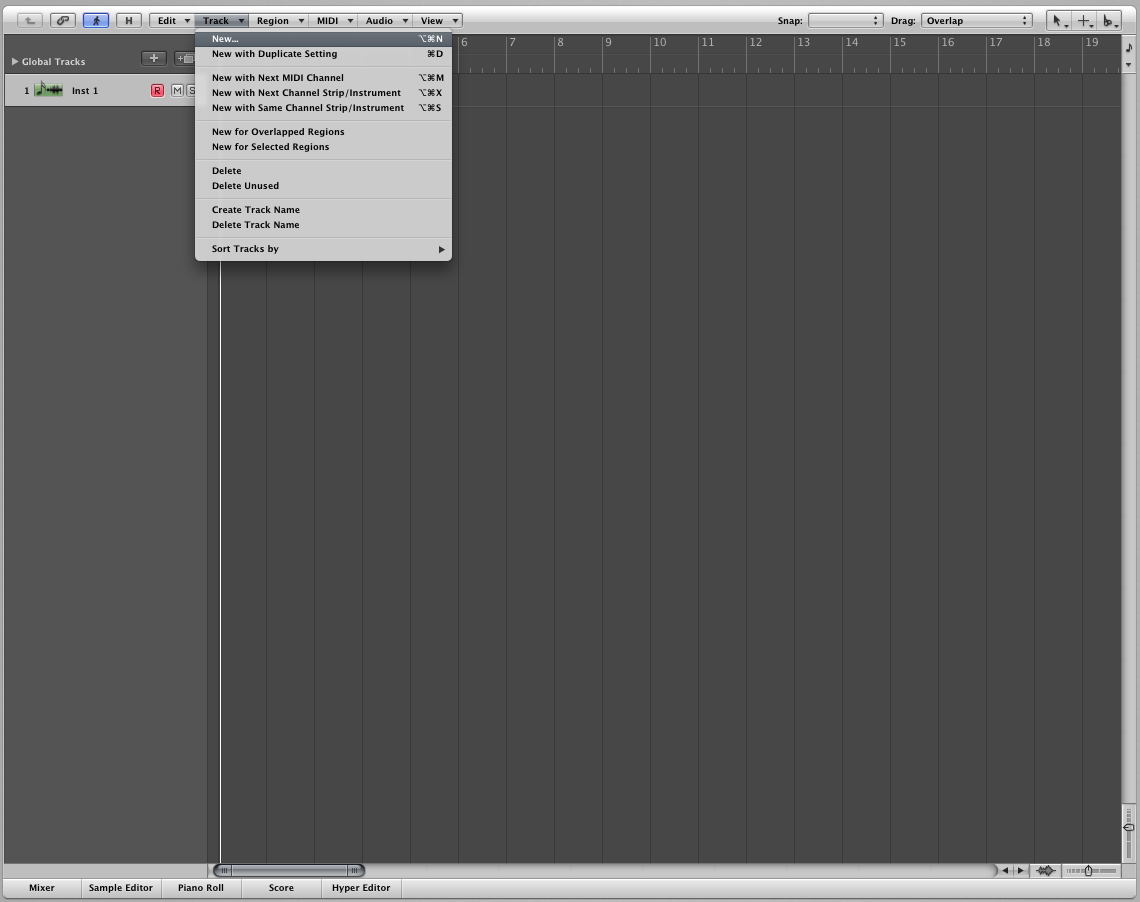
Then just choose “software instrument”. When the track is created, Logic will automatically open the browser on the right side of the screen. Here you will see TONS of different instrument groups. Click through to find a sound you like. (In this case, I am choosing Bosendorfer Piano Studio. Notice that with my instrument track selected, if I make a selection in the browser, my track automatically changes to that sound. Also, Logic will automatically insert EQ and effects into that track’s channel strip. In the picture below, I selected Bosendorfer Piano Studio; Logic changed my instrument to the piano sound, and added channel EQ (which you can see in the channel strip in the bottom LEFT corner of the picture).
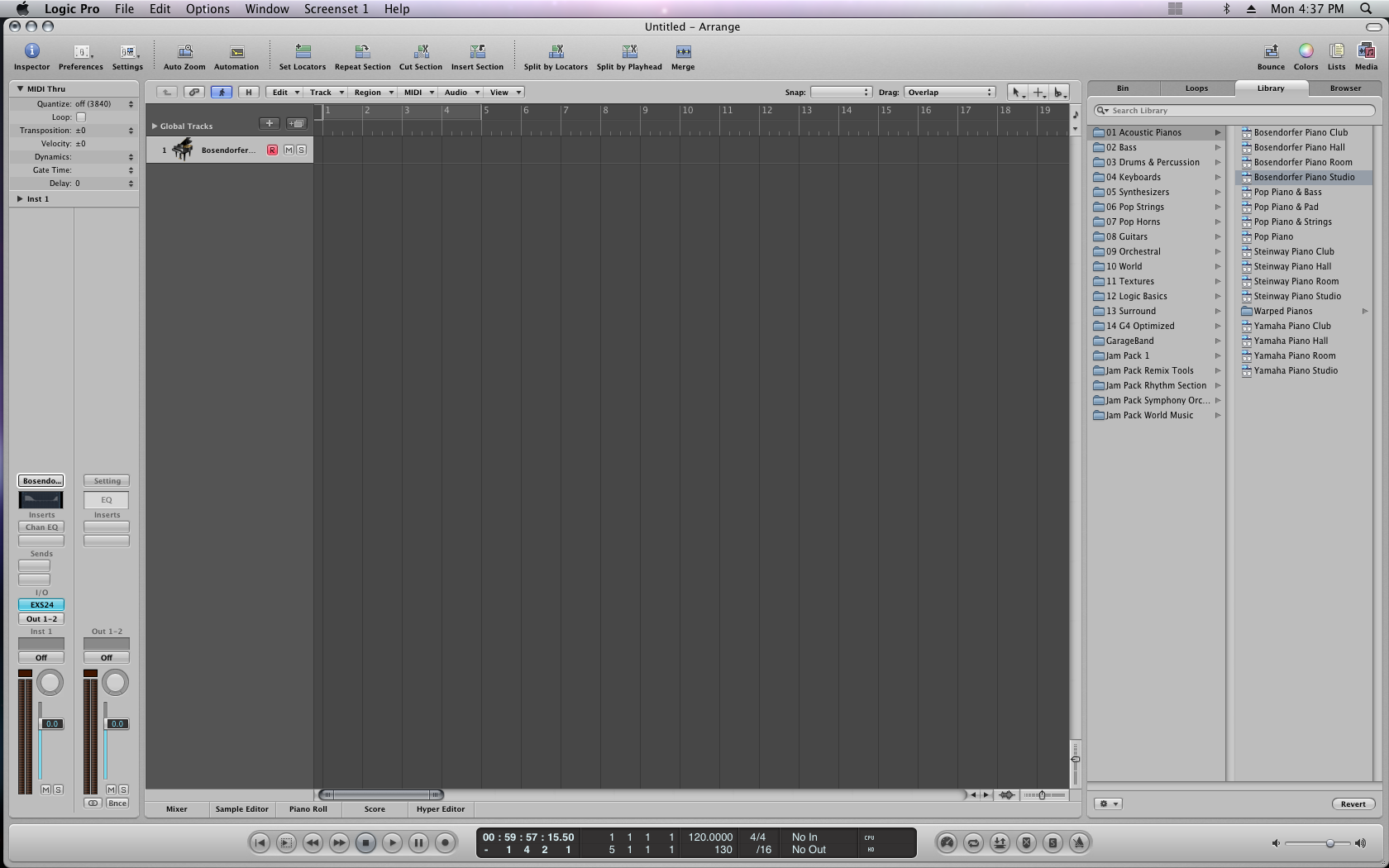
Try loading up some other sounds, being sure to watch the channel strip to see what effects Logic loads up.
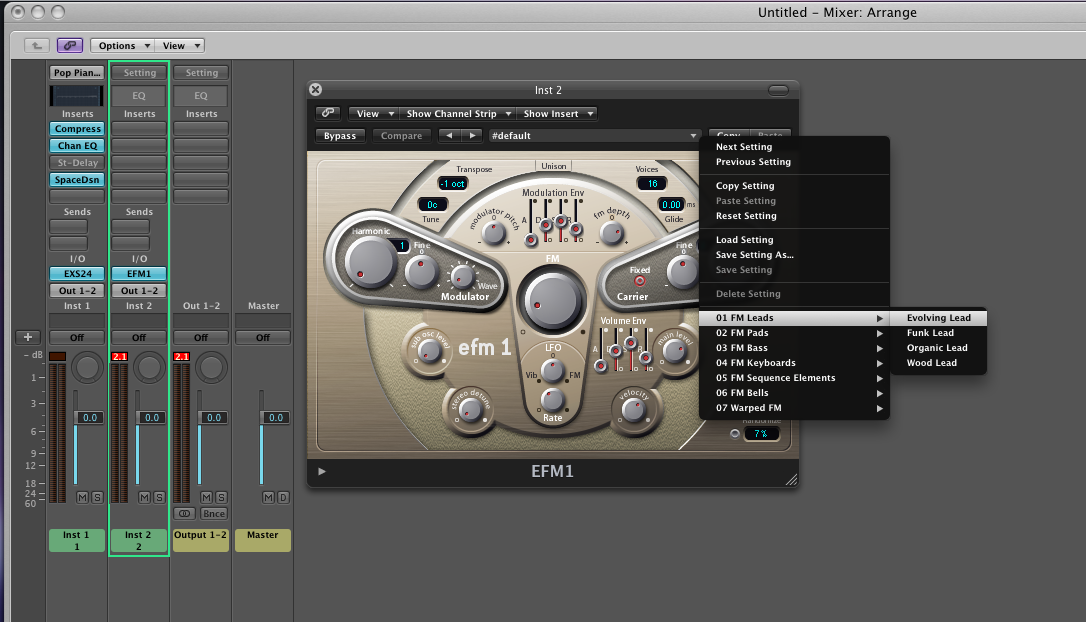
Another way to load up instruments is to make a new instrument track, but rather loading up sounds with the browser, you pick the instruments and effects yourself. Create a new instrument track, just as we did before. This time, go into the Mixer window. If you click on the “input” of the new instrument track, you will see all the possible instruments to choose from. Lets pick the EFM1 (stereo). Probably the easiest way to get great sounds (at least at first) is to use a preset. Access the presets in the menu (shown in the picture below). Cycle through them, pick one you like, and then start tweaking!
Now, what if you have an instrument that can utilize multiple outputs? (If you are familiar with Strike, Structure, or many EastWest instruments, this is for you). You don’t have to create aux tracks and assign the correct inputs, Logic will do that for you. Try selecting an instrument that can send multiple outputs. In this case, I am going to choose the EXS24 sampler, and I will choose the multiple output version.
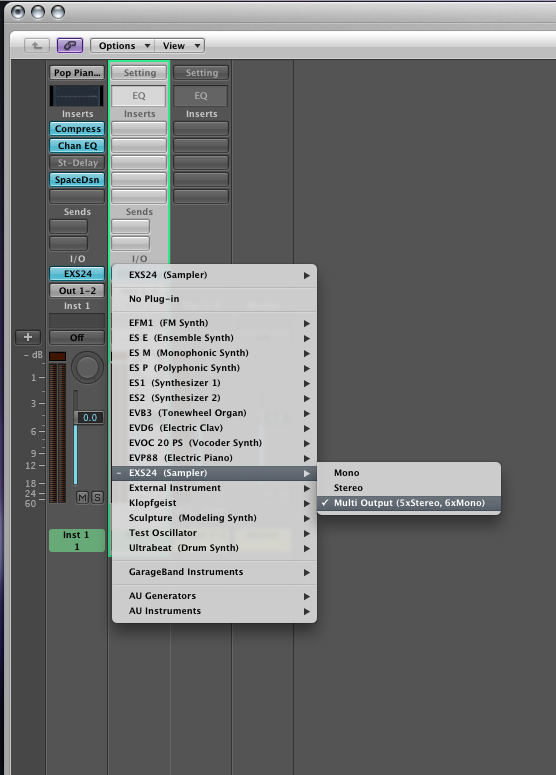
Now just click the “+” under the solo button, and an Aux track with the next output the software as its input will be created. So, the first time I click the”+”, an aux track with an input of “EXS24 3-4″ will be created (the next time, “EXS24 5-6″, etc…) Using instruments with multiple outputs is a little more complicated that we are going to get in this article, but expect more soon on that topic.
With instruments and loops in Logic, you can make great sounding music really quickly. (If you need a refresher on how to use loops in Logic, see our article HERE). If you have questions about Logic instruments, or need more information on a specific topic, post in the comments here or send me an email.
C
The Studio Files
Comments»
VERY NICE!!!! Thanks for the intro. I’m gonna need it, that’s for sure.
Cool.
I’m up and running with videos now, so if there’s anything you want to see in video form, let me know… its hard to think of ideas sometimes
Greetings!
How about a feature on setting up and using different articulations in the instruments found in e.g. the Orchestra samples? The manual suggests using the mod wheel to generate the necessary Controller 4-commands, but it is not the ideal interface when you have maybe 6 articulations to choose from.
Hilsen fra 70 39′N, 23 41′E