Logic for Pro Tools users Part 4: Automation and Grouping February 22, 2008
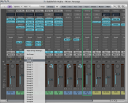
Posted by ConnorSmith in : Leopard, Logic Studio 8, Pro Tools , trackbackLet’s get into automation and track groups in Logic Studio. I know, these are some really sacred and revered features of Pro Tools, but Logic’s grouping and automation are actually fairly close to Pro Tools, so you should feel right at home. As in Pro Tools, you can automate pretty much anything in Logic Studio. As far as track groups go, you can have up to 32 different groups, each with assignable parameters (edit, mix, automation, sends, etc…) Grouping tracks in Logic is very simple. To assign a track to a group, just click above the automation menu in the mixer window (pictured below). You’ll notice that I have assigned the first two tracks in the mixer to group one, and am about to assign the 3rd track to group #2.
If that is the first group you are assigning, a “Group Settings” dialog box will open. If it’s not, and you want to access that window, just click in the area you would to assign a track, and you will see it as an option (“Open Group Settings”). The box looks like:
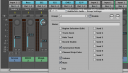
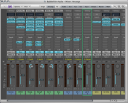
In this box, you find a whole bunch of assignable parameters (which is very similar to the box in Pro Tools when you make group). Here there seem to be a few more options (like individual options for each send, etc.). Be sure to assign a name to your groups. Its a lot easier to identify “guitars”, “drums”, “synths” than it is “1″, “2″, “3″… Here are my groups all assigned, customized (in the Group Settings box), and labeled.
Ok, now for Automation.
First lets hit the easier stuff: volume and pan. My favorite way to do automation is to first put the track into an appropriate automation mode (usually latch or touch, depending on what I am doing). Then, play the song, and move the fader/pan knob where you want the automation to occur. Now, since you are using a mouse (or maybe you are blessed and have a control surface), its likely that you didn’t get that “perfect” curve on the first try. Rather than trying 10 more times to get it perfect, I would just edit it in the arrange window. Go there, and click on the track that you are automating. Now, hit “A” or, select “Track Automation” in the View menu at the top of the arrange window. (Use your hotkeys!) Now, the track will change to automation. In the picture below, I have automated this guitar chord to pan from left to right.
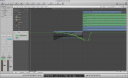
Now, either using the pencil tool to draw, or the pointer tool to grab automation points, make the automation anyway you would like. This same process applies to volume, pan, and sends. And, the process of automating plug-ins is really just as easy.
Lets say I had a chorus plug-in on that guitar track we have been automating. I want to automate the “Rate” of the chorus during that first chord. So, again, put the track into a record mode (latch, touch, or write) and play the song where you want to automate. Then, just drag the “Rate” knob of the chorus plug-in as you please. In the picture below, you will see that the view of the track automatically switched to the chorus automation while I was recording it.
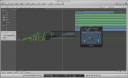
Again, now just use the pointer of the editor tool to tweak the automation to your liking (or do another take if you were way off to save time). Now, to get back to your other automated parameters (remember, we automated the Pan earlier on this track) just click the menu underneath the track name:
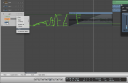
Now, just remember to watch out when you are automating tracks in a group. If you aren’t careful, you can apply automation across all tracks in your group (even when you don’t want it). To prevent it, just make the proper options are deselected in the Group Settings dialog box we talked about earlier. (Most notably, make sure the “Automation Mode” button is not checked if you DO NOT want your tracks to write automation together).
That’s all for now. If you have questions about this article, need more detail (or into some of the trickier stuff), or have questions about automation or groups in general, just post in the comments here or email me.
C
The Studio Files
Comments»
Sorry if the pictures were incorrect a few minutes ago… there was a slight problem, but everything should be fixed now.
Thanks
C