Using Automation in DAWs – Part 1 November 20, 2008
Posted by ConnorSmith in : Digital Audio Workstations, Project Studio, Studio Setup , trackbackAutomation is arguably one of the most advantageous features in Digital Audio Workstations (whether it be Pro Tools, Logic Pro, Cubase, etc…)
Complete control over ANY parameter of of any channel, plug-in, effect, aux (etc) is an incredible tool. Many of us who started after the days of 2″ machines through big boards (myself included) don’t really have a grasp of what it was like before the days of full automation.
Here are some suggestions on structuring your workflow around automation as well as some commonly used techniques.
As far as working with automation, I have one golden rule:
Do NOT start automating things before you need to.
So when the heck does “need to” kick in? Well, its very dependent on the project, but generally, I wouldn’t start any big automation dives until you have a pretty good mix going. Automating the parameters of tracks which haven’t been mixed (at least a rough mix) can really be like working backwards. In this case, you’d be mixing off of things which are changing (whether you automated volume, EQ, effects). Having the tracks relatively mixed will give you a baseline (or reference) off of which you can work.
Yes, it is possible to change relative levels after automation (whether its through automation trim, gain in plug-ins, etc). However, I feel comfortable saying that its typically much easier to add automation towards the end of the mix process. That being said, sometimes you need to automate before mixing (say if you are automating a pan on a swelling reverse cymbal).
Some Commonly Automated Parameters
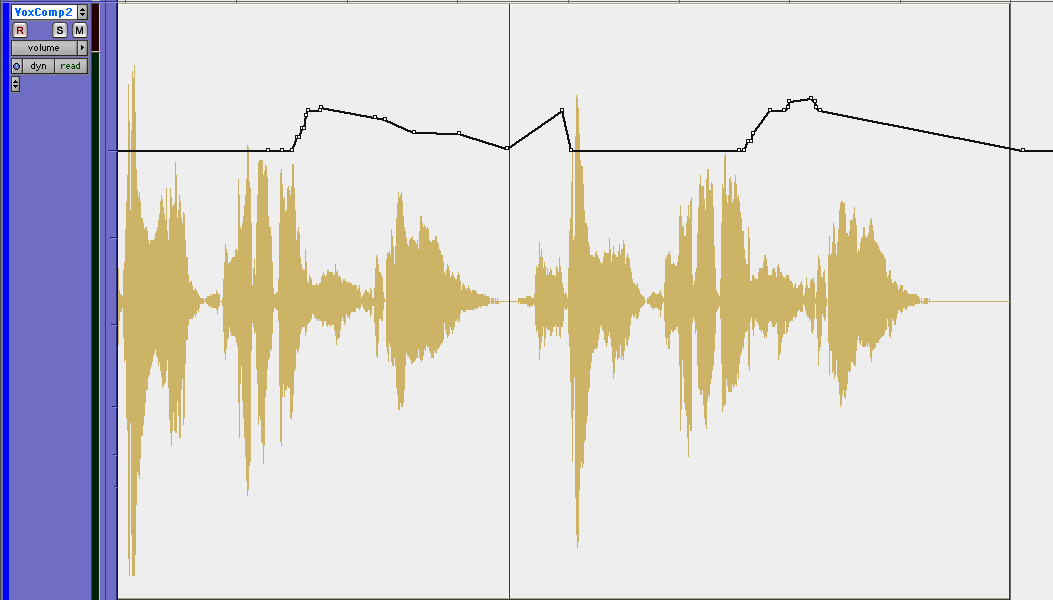
Vocal levels – as obvious as it is, automating the level of certain words in a vocal track is extremely common. Using a compressor on the vocal can help to even out the volume of words, but very often the finer detail of volume automation makes a big difference. Even 2-3 dB boosts on words can help them cut through. As I said in the last section, I would recommend automating words up/down once you have a pretty good vocal level relative to the mix. If you start automating when the vocal is already too quiet (or loud) in the mix overall, you will end up having to bump every single word.
(Click on pictures for fullsize)
Here is an example where certain words were sang a little low (volume), so I automated the fader up a few dB in places
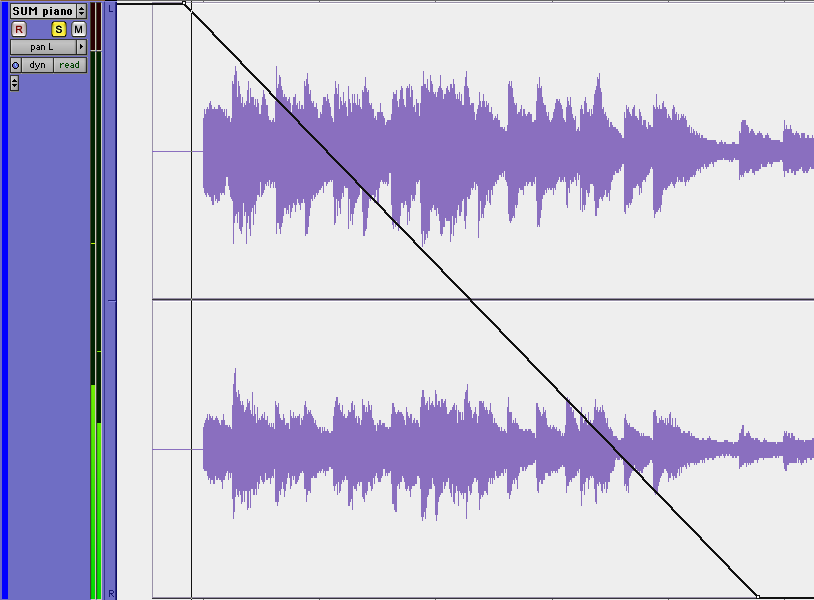
Panning Sounds - Automating the pan of tracks can give the sensation that their sound is moving across the stereo image. In this picture, we are looking at the pan data for a piano track. I have the left channel traveling from fully L to fully R over a few bars. When listening back, this will sound like the piano is moving from speaker to speaker
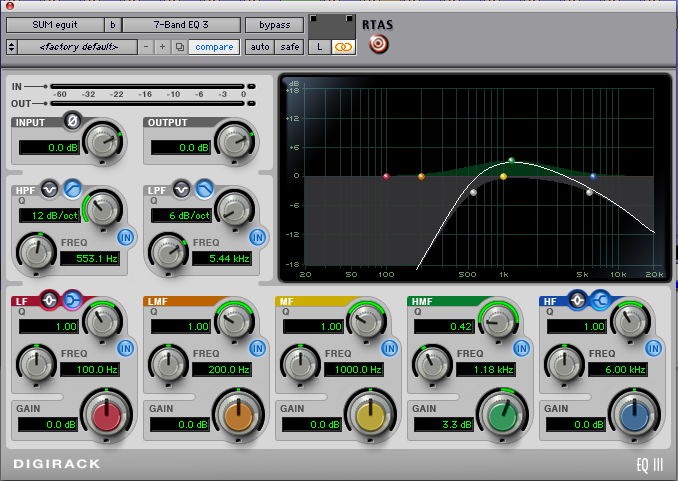
EQ: The “Radio Effect” - Although I think we had an article about this earlier, you can get a lo-fi, “radio” (or telephone) sounding effect out of any simple parametric equalizer. First you need to construct a curve somewhat similar to the curve pictured below. The basic process involves using both a lo-pass and hi-pass filter, and then boosting the mids somewhere around 1k. Now that you have the effect on the track, you need to be able to switch it on and off. You do this by engaging the “BYPASS” of the EQ through automation. All DAWs will do this relatively the same say. (If you have a question on how to do it in a specific DAW, I’d be happy to answer)
So here is the EQ:
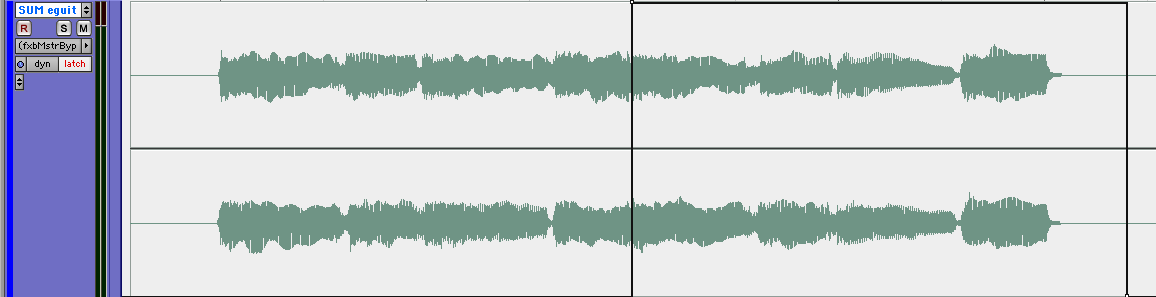
And here we are looking at the Master Bypass automation channel for that EQ. Notice how the Bypass is engaged about halfway through this phrase. When that happens, the EQ will bypass, and the guitars will sound normal.
This is just a brief introduction to automation, mainly to show you what kinds of things can be done at an introductory level. If anyone has questions on how to do these in a specific DAW, I’d be more than happy to show that. (Or, if there are other things you’d like to know how to automate, I can do that)
C
The Studio Files
Comments»
I use ProTools LE and do not have a control surface, which makes it difficult to ride multiple faders to automate volume level. Is there a trick you employ here, or do you write in volume automation with the pencil tool? I’d like to someday get a Control 8 in order to automate using actual faders, but until then I’m stuck with a mouse. Any suggestions?
Unfortunately, there isn’t really something to do this ITB.
If you need to move multiple faders in a similar manner, I would just group the tracks together (so writing automation to one affects them all)
[...] piano equalizers thestudiofiles.com [...]